Account & Addresses
1. Accessing Your Account
What you see:
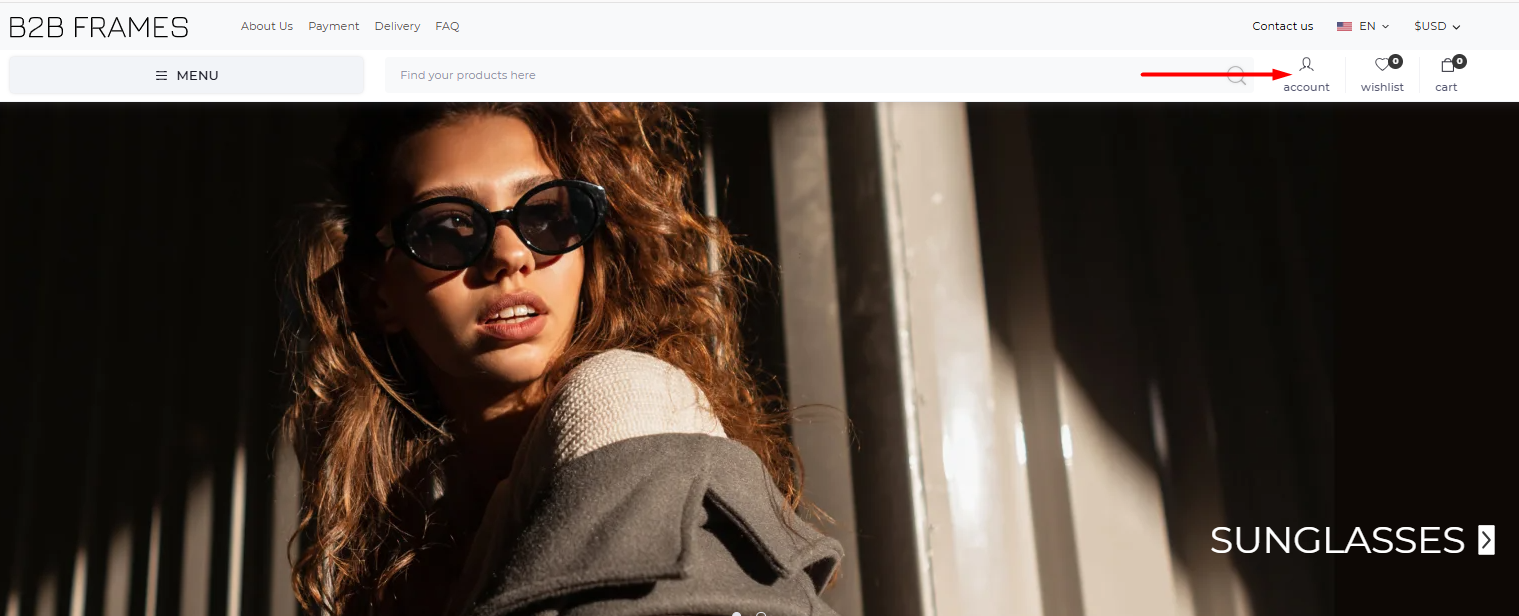
- Account icon (top right, shaped like a person).
- Search bar, wishlist, and cart next to it.
Steps:
- Go to the top right corner of the website.
- Click the Account icon.
👉 This opens your My Account page.
2. My Account Dashboard
What you see:
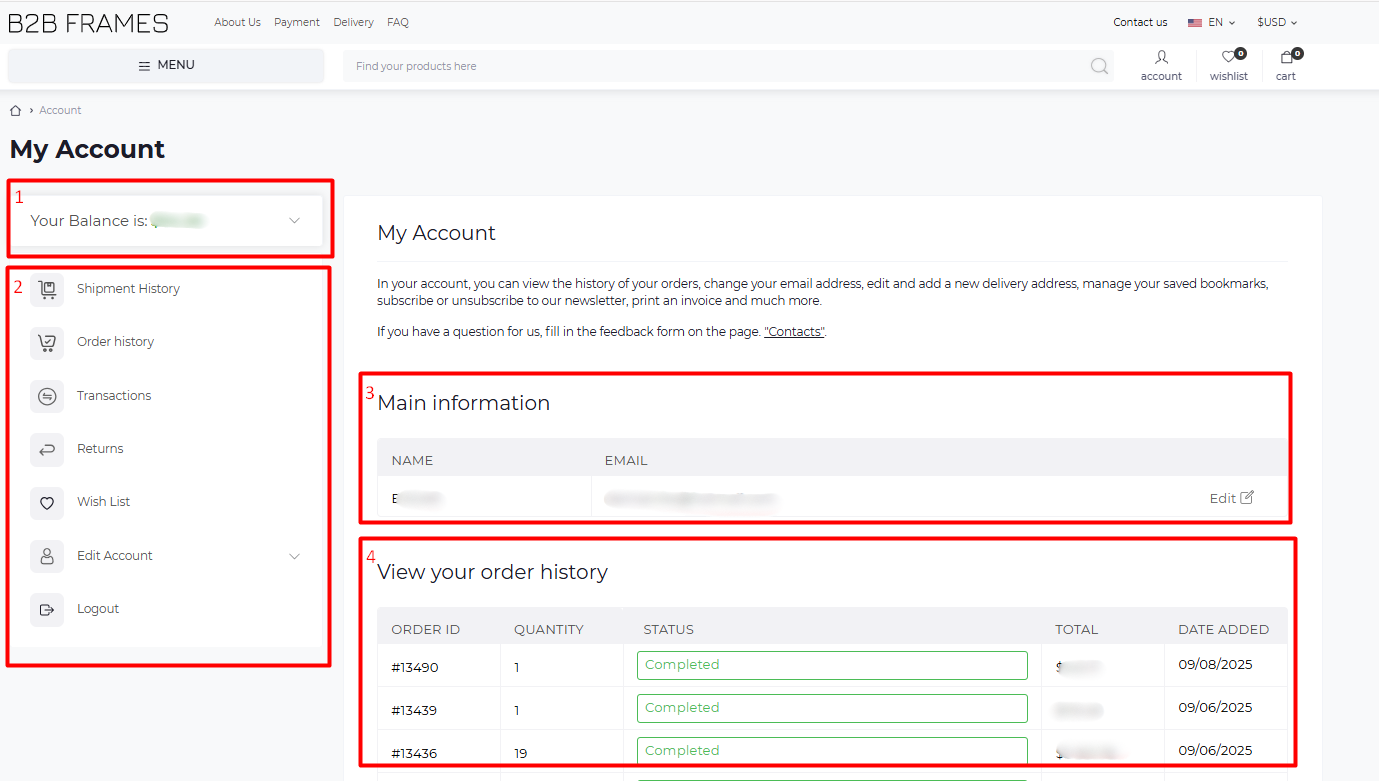
- Balance (shows your available credit).
- Sidebar menu: Shipment History, Order History, Transactions, Returns, Wish List, Edit Account, Logout.
- Main information: Name and email.
- Order history table: Order ID, Quantity, Status, Total, Date Added.
What you can do here:
- Check your account balance.
- View/edit your profile info.
- See all past orders and their status.
- Navigate to other sections via the sidebar.
Steps:
- After logging in, you land on the My Account page.
- Check your balance at the top.
- Review your personal info in “Main Information.”
Tip: Click Edit to update your name or email. - Scroll down to see your order history.
Each order shows status (e.g., Completed), date, and total.
3. Editing Your Account Information
What you see:
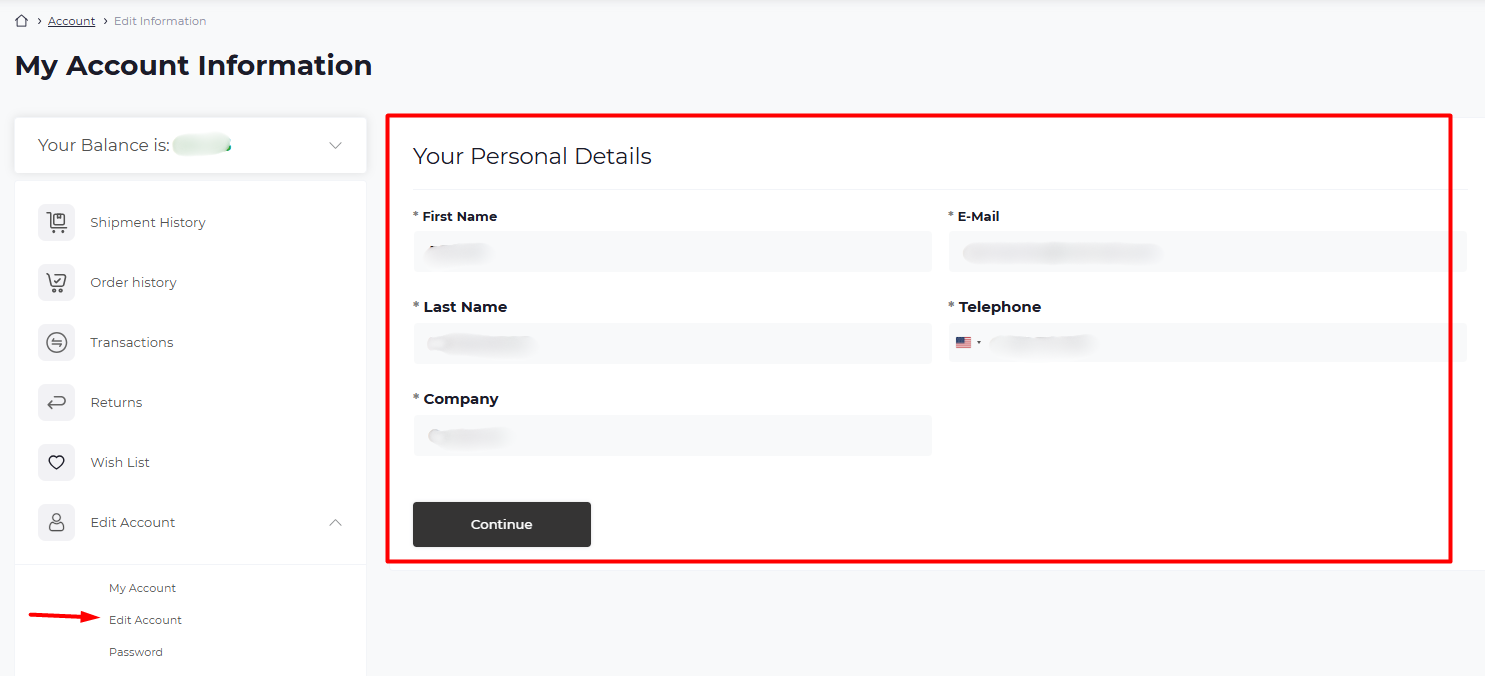
- Form fields: First Name, Last Name, Email, Telephone, Company.
- Continue button.
Steps:
- In the sidebar, click Edit Account.
- Update your details in the fields.
Tip: Fields marked with * are required. - Click Continue to save changes.
4. Changing Your Password
What you see:
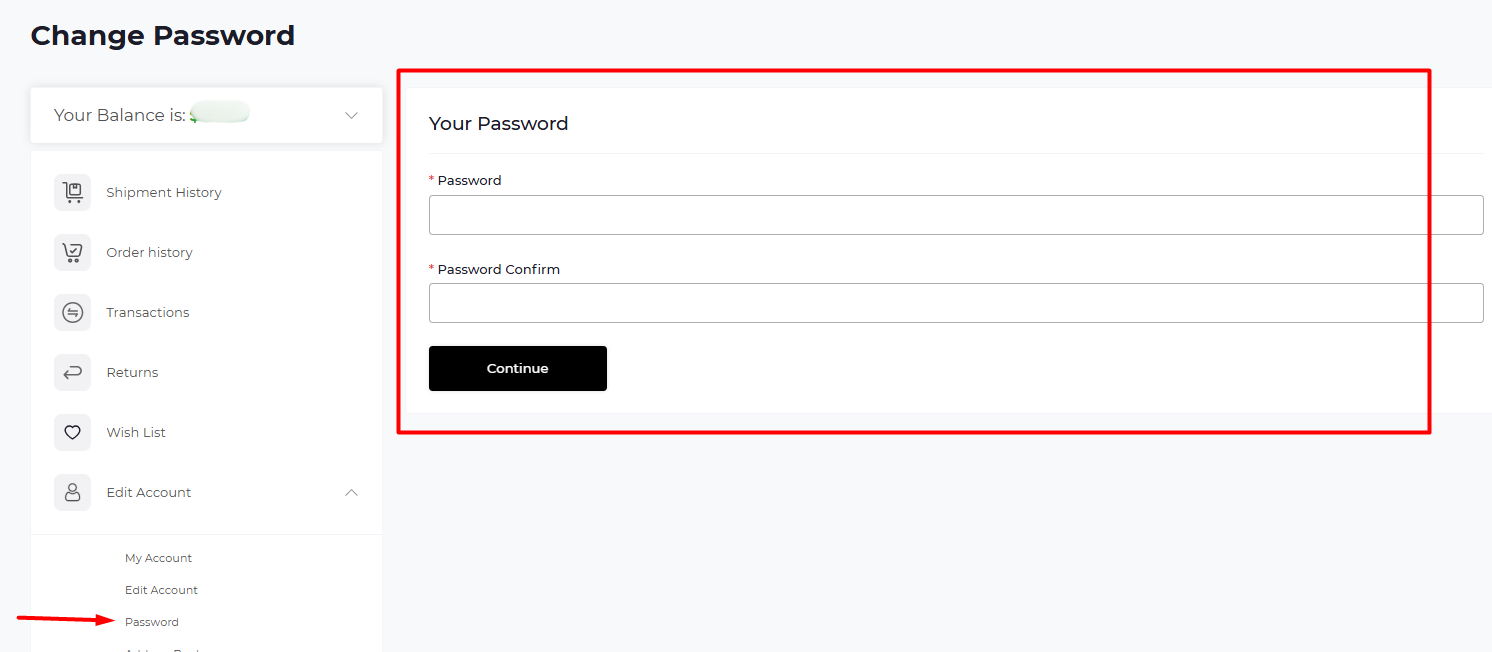
- Two fields: Password and Confirm Password.
- Continue button.
Steps:
- In the sidebar, under Edit Account, click Password.
- Enter your new password in the first box.
- Re-enter it in the second box.
Tip: Both entries must match exactly. - Click Continue to save your new password.
5. Managing Your Addresses
What you see:
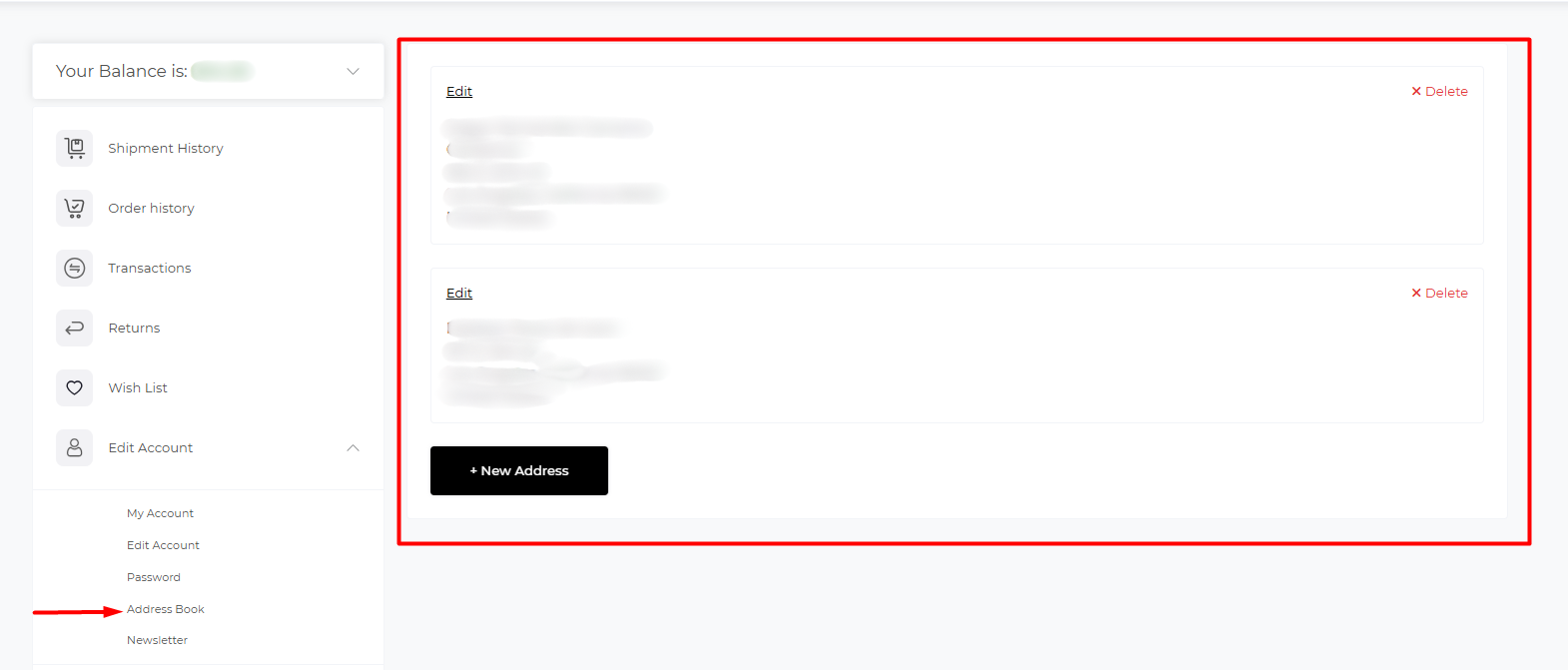
- Address list with Edit and Delete options.
- + New Address button.
Steps:
- In the sidebar, click Address Book.
- To change an existing address: click Edit.
- To remove an address: click Delete.
- To add a new address: click + New Address and fill in the form.
Tip: You can store multiple shipping addresses here.
6. Newsletter Subscription
What you see:
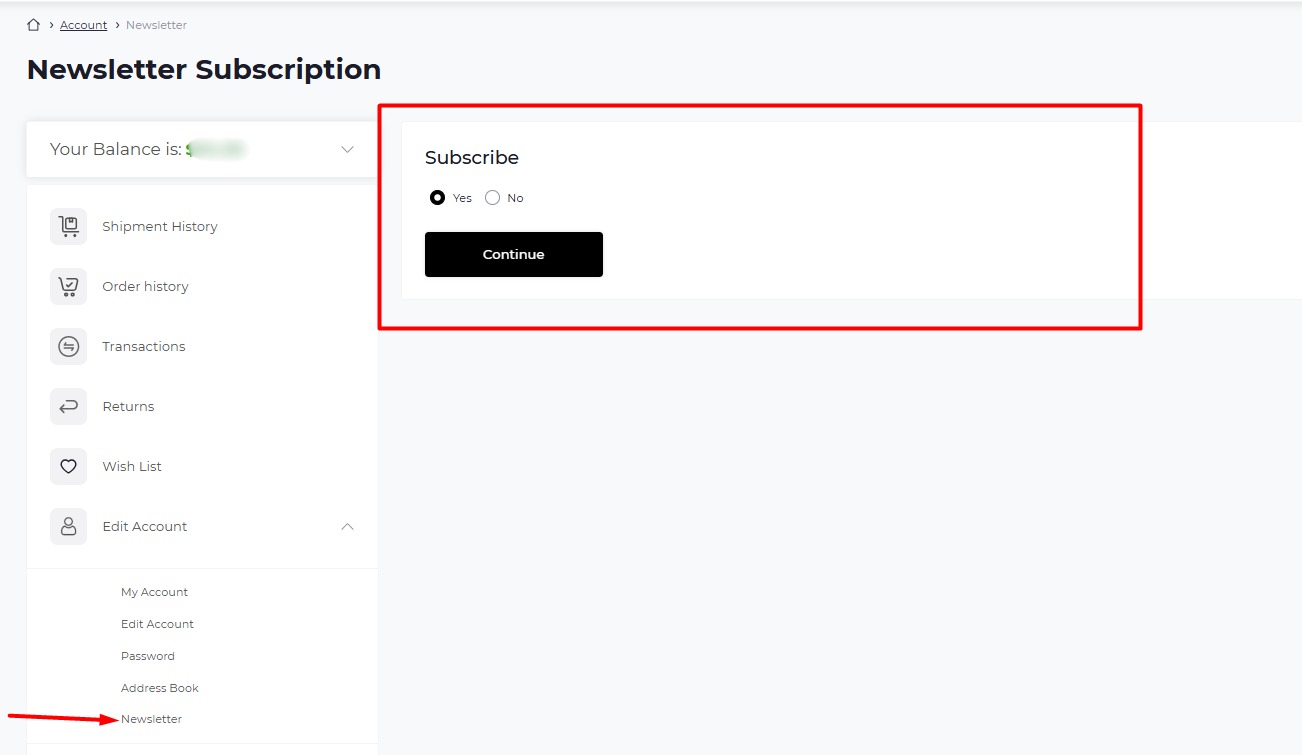
- Options: Yes or No for subscribing.
- Continue button.
Steps:
- In the sidebar, click Newsletter.
- Select Yes to receive updates, or No to unsubscribe.
- Click Continue to save your choice.