Cart & Checkout
1. Cart Overview (left side of Checkout)
What you see:
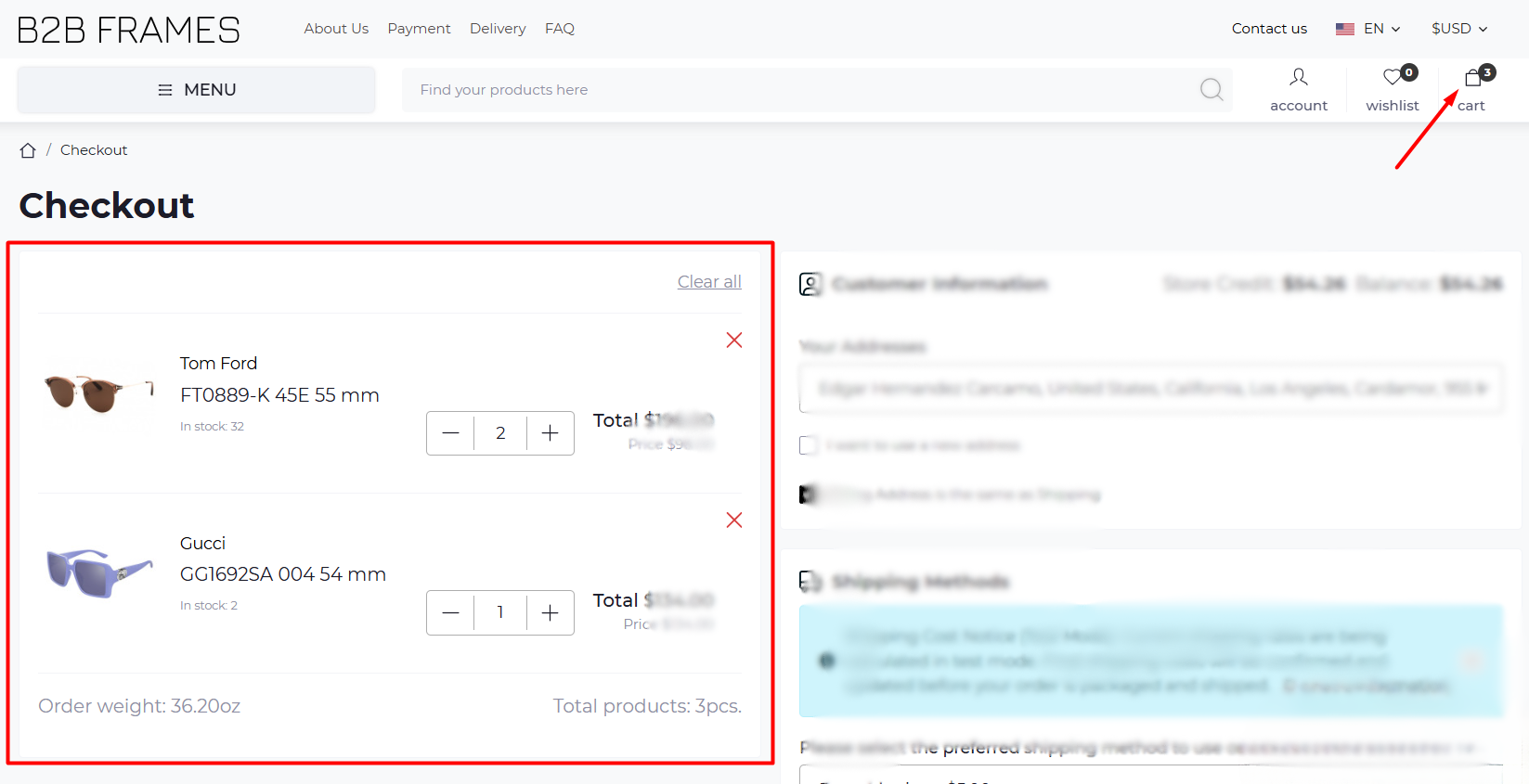
- Product card (one per item):
• Image + Brand/Model/Size (e.g., FT0889-K 45E 55 mm).
• In stock: X — current warehouse quantity.
• Qty stepper: – / number / +.
• Total $ — line subtotal for that product.
• Remove (X) — deletes only this item. - Clear all — empties the entire cart.
- Order weight — auto-calculated by items (used for shipping).
- Total products — count of units in the cart.
How to use
- Review each item’s model/size and in-stock number.
- Set the Qty with – / +.
Tip: If Qty exceeds “In stock,” you’ll need to lower it to continue. - Click X to remove a single item, or Clear all to empty the cart.
- Check Order weight — heavier orders may change shipping options.
Common notes
- Changing quantity updates the line Total and the overall order Total.
- If a price has a special or discount, you may see the original price crossed out with a new price beside it.
2. Customer Information (right side, top)
Fields & controls
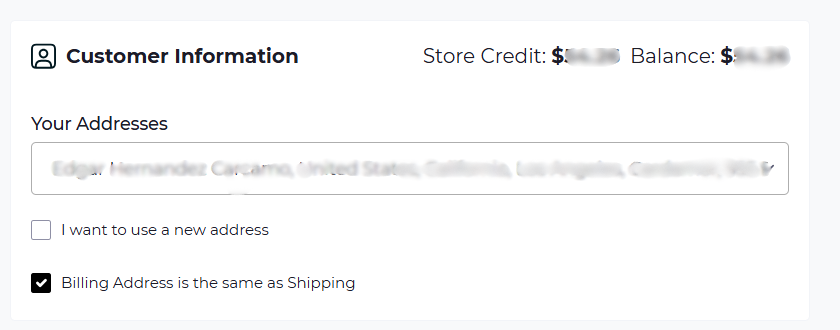
- Store Credit — shows how much credit you have.
- Balance — your remaining balance.
- Your Addresses (dropdown) — choose a saved shipping address.
- I want to use a new address (checkbox) — reveals address form to add a new one.
- Billing Address is the same as Shipping (checkbox) — keep on to copy shipping; uncheck to enter a different billing address.
How to use
- Pick your shipping location from Your Addresses.
- If the address isn’t there, check I want to use a new address, fill in the fields, and save.
- Leave Billing = Shipping checked (recommended). Uncheck only if your payment card requires a different billing address.
Tips
- Make sure street, suite/apt, city, state/region, postal code, country, and phone are complete — carriers reject incomplete addresses.
- For dropship orders, put your customer’s address here (not yours).
Errors to avoid
- Missing ZIP/postal codes or wrong state abbreviations.
- Using PO boxes for services that require a physical address (e.g., UPS Ground in some regions).
3. Shipping Methods
What you see:
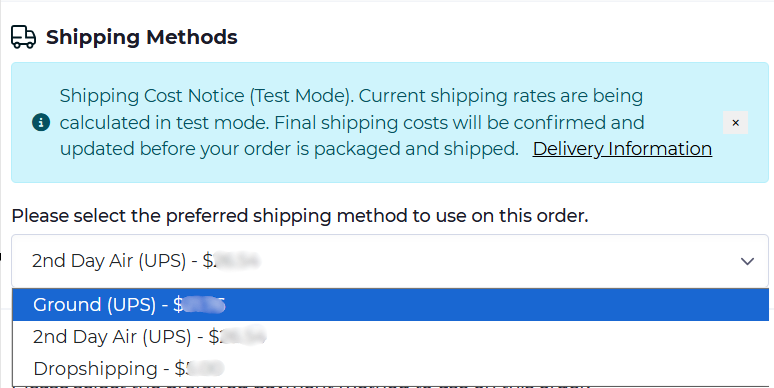
- Notice box — "Shipping Cost Notice (Test Mode). Current shipping rates are being calculated in test mode. Final shipping costs will be confirmed and updated before your order is packaged and shipped."
- Shipping method dropdown — options like:
- Dropshipping
- Ground (UPS)
- 2nd Day Air (UPS)
- (Sometimes) extra methods depending on destination/weight.
How to use
- Open the dropdown and pick a method:
- Dropshipping — for sending directly to your customer (you may need a label; see “Labels” below).
- Ground — standard economy shipping.
- 2nd Day Air — expedited shipping.
- Confirm the cost shown next to each option.
Tips
- If the order is time-sensitive, choose an expedited option.
- Order weight and destination can change which methods appear.
Troubleshooting
- If no methods appear: recheck the address, country, or postal code.
- If cost looks unusual: remember the notice — final costs can adjust after packing.
4. Dropship Fields & Labels (if applicable)
(Shown below shipping, required for dropship workflows)
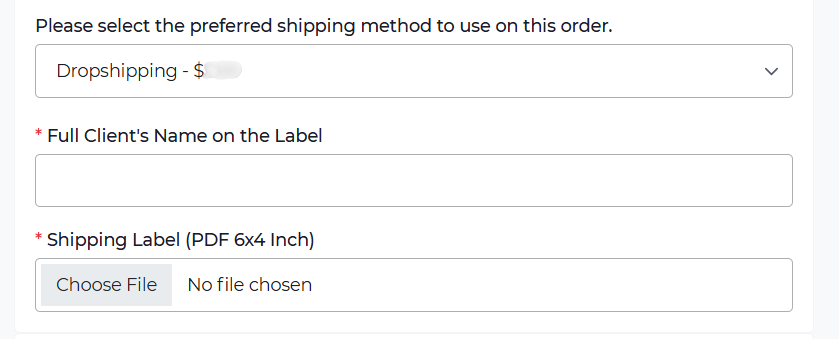
- Full Client’s Name on the Label — text field printed on the parcel label.
- Shipping Label (PDF 6×4 inch) — file upload (PDF format, 6×4").
How to use
- Enter your customer’s full name exactly as it should appear.
- Click Choose File and upload a 6×4 inch PDF label (if your workflow requires providing one).
Tip: Use a standard 6×4 thermal-label format; other sizes may be rejected.
Common issues
- Missing required fields (marked with *).
- Wrong file type/size (must be PDF, ideally 6×4 inches).
5. Selecting Payment Method
What you see:
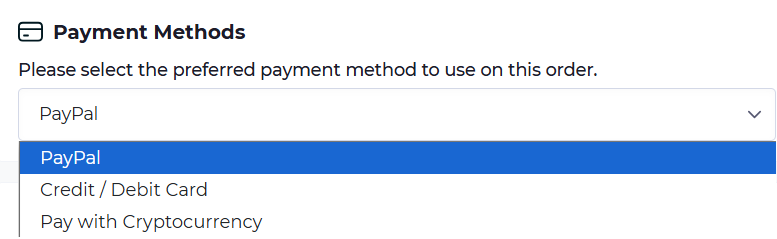
Steps:
- Open the Payment Methods dropdown.
- Select your preferred payment option (PayPal, Card, or Crypto).
6. Finalize & Place Order
What you see:
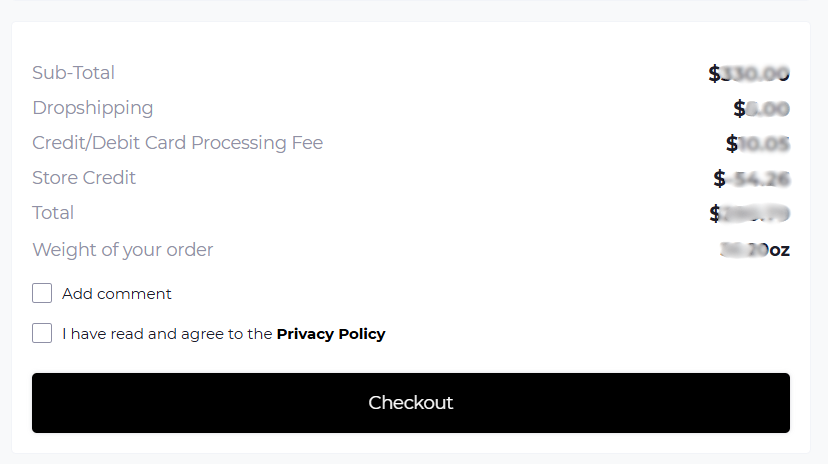
- Sub-Total – Cost of all products before fees/credits.
- Shipping Cost – Fee for the chosen delivery method
- Card Fee – Extra charge only if paying with card.
- Store Credit – Amount automatically deducted.
- Total – Final amount you’ll pay.
- Weight – Combined order weight (affects shipping).
Steps:
- (Optional) Add a comment if needed.
- Check the box to agree with the Privacy Policy.
- Click the Checkout button to finalize your order.
After placing the order
In My Account → Order History, you can track status, quantities, and invoices/packing slips as available.