Products
1. Opening the Main Menu
What you see:
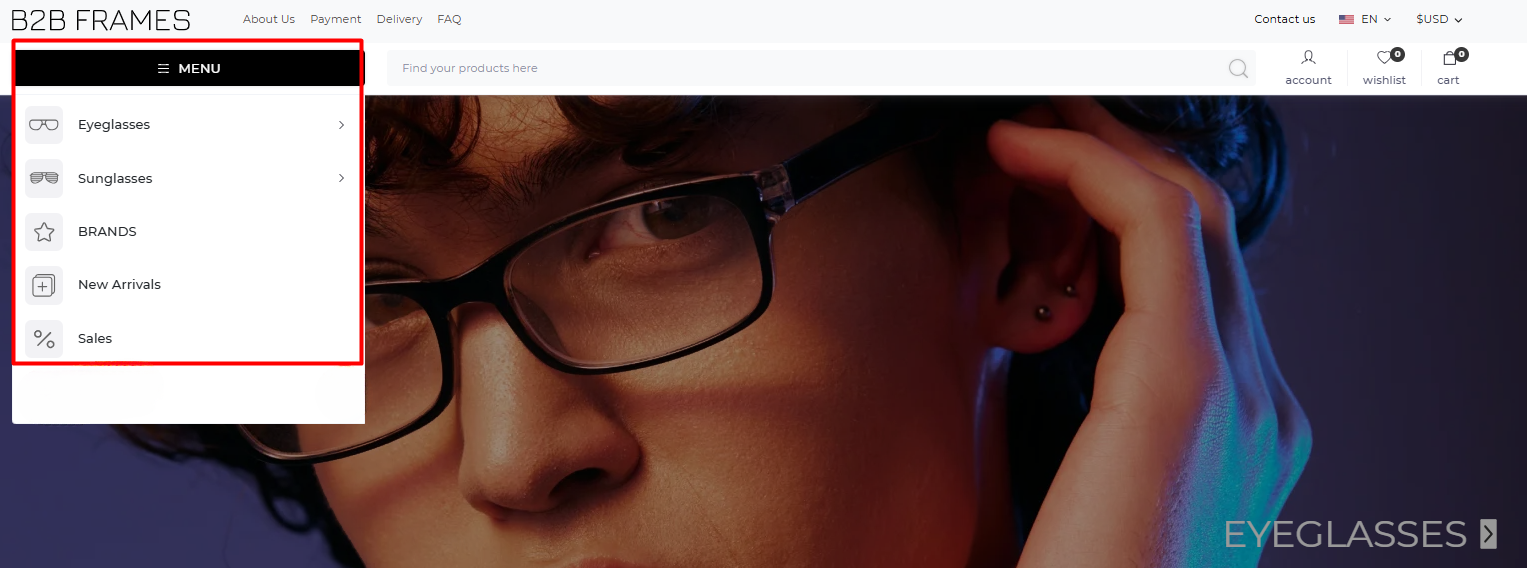
- Menu button (☰ MENU) at the top left.
- Categories: Eyeglasses, Sunglasses, Brands, New Arrivals, Sales.
Steps:
- Click the MENU button.
- Choose a category you want to explore (e.g., Eyeglasses, Sunglasses).
👉 This expands product categories.
2. Browsing Eyeglasses
What you see:
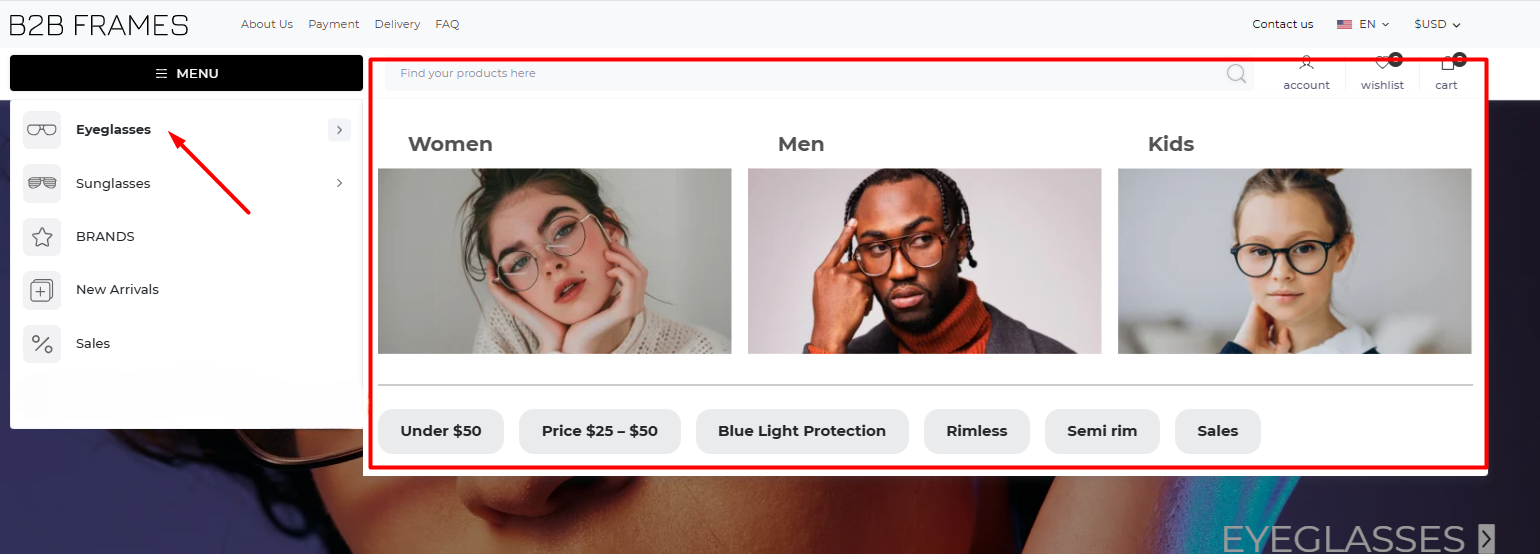
- Eyeglasses divided into Women, Men, Kids.
- Quick filters: Under $50, Price $25–$50, Blue Light Protection, Rimless, Semi Rim, Sales.
Steps:
- Click Eyeglasses from the menu.
- Select a category (Women/Men/Kids).
- Apply a quick filter to refine results.
Example: Click Blue Light Protection to only see those models.
3. Browsing Sunglasses
What you see:
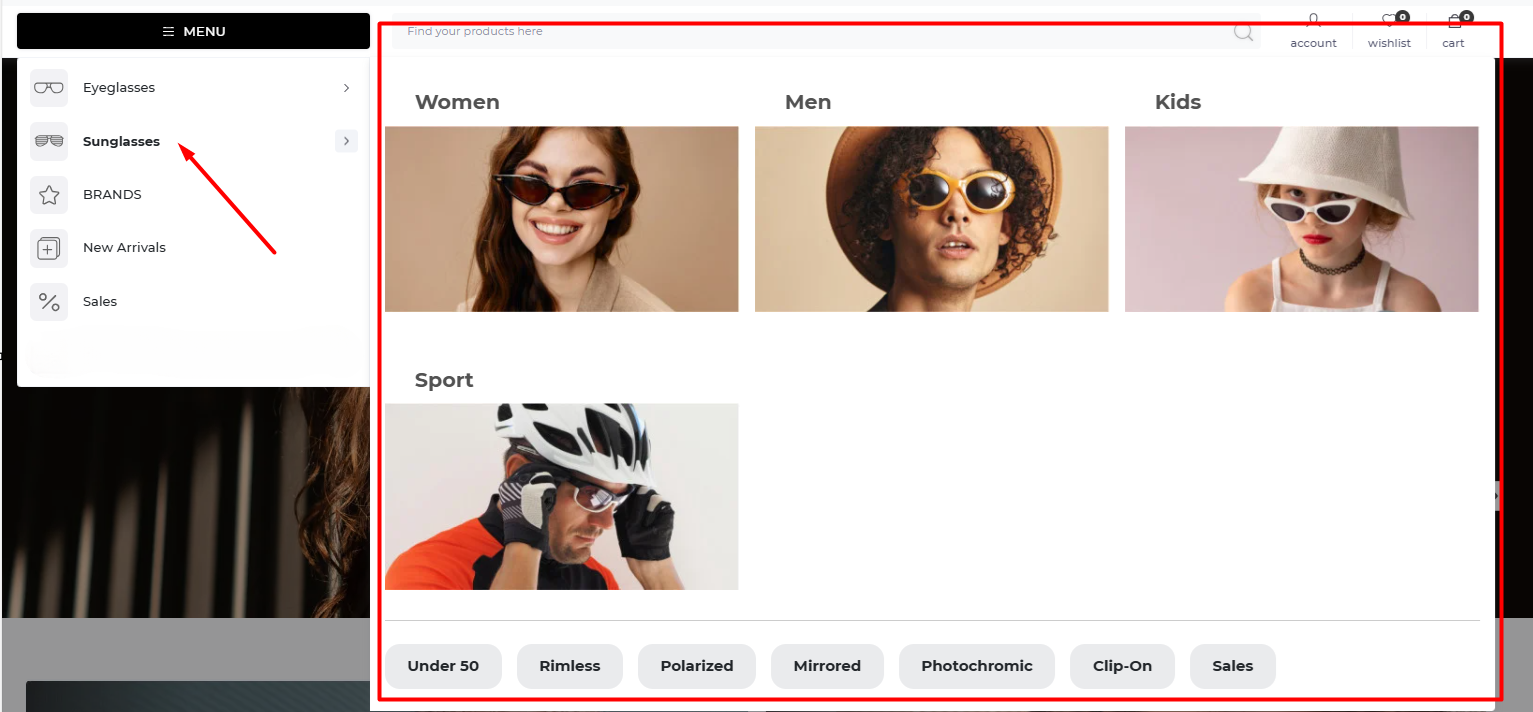
- Sunglasses divided into Women, Men, Kids, Sport.
- Quick filters: Under $50, Rimless, Polarized, Mirrored, Photochromic, Clip-On, Sales.
Steps:
- Click Sunglasses from the menu.
- Choose a category (e.g., Sport for performance eyewear).
- Use quick filters like Polarized or Mirrored to narrow choices.
4. Browsing by Brands
What you see:
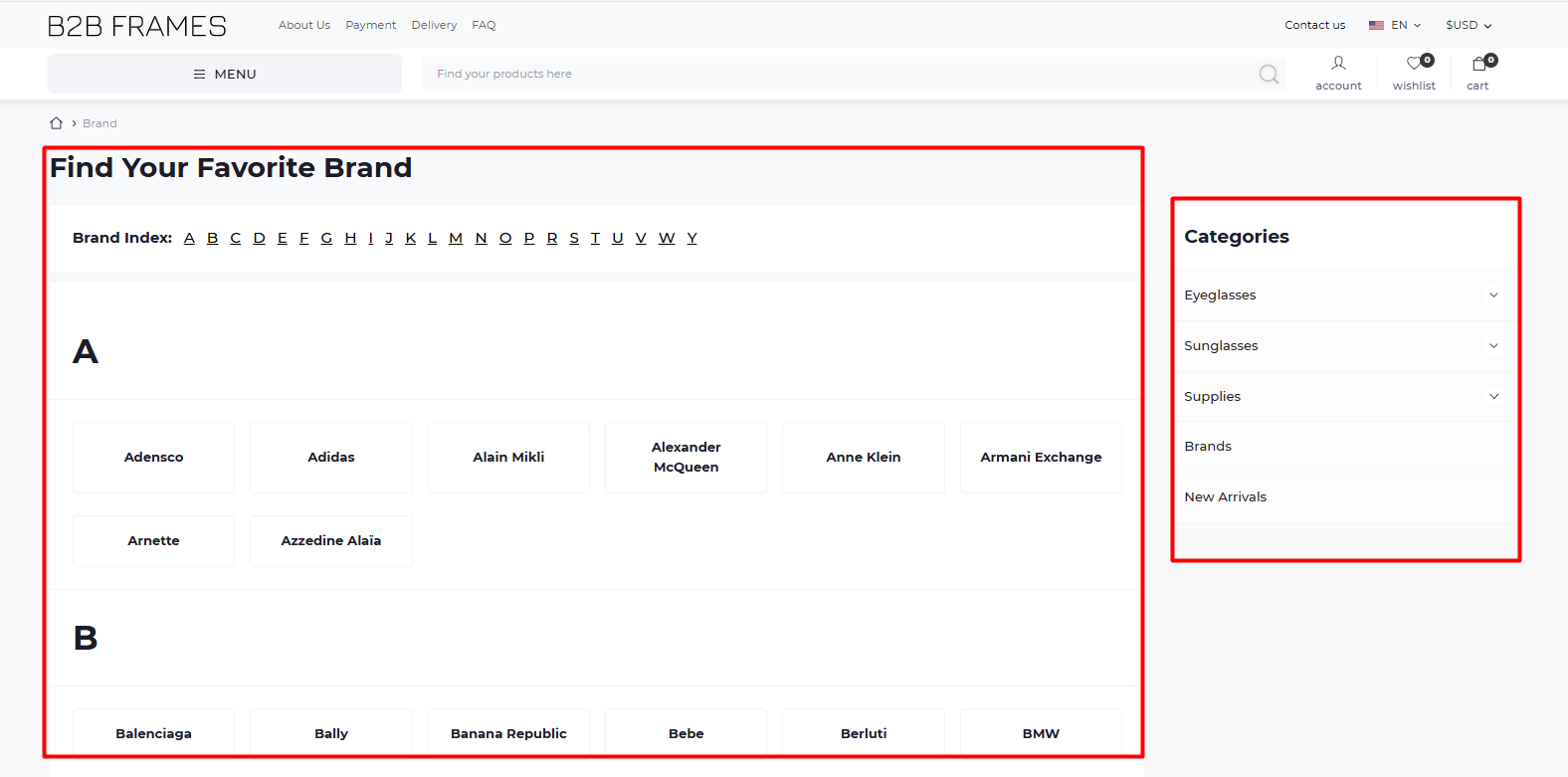
- Alphabetical index (A–Z).
- Grid of brand names (Adidas, Armani Exchange, Balenciaga, etc.).
- Categories panel on the right.
Steps:
- Click Brands from the menu.
- Select a letter to jump to brands starting with that letter.
- Click the brand name (e.g., Gucci) to see all products from that brand.
5. Newest Offers Page
What you see:
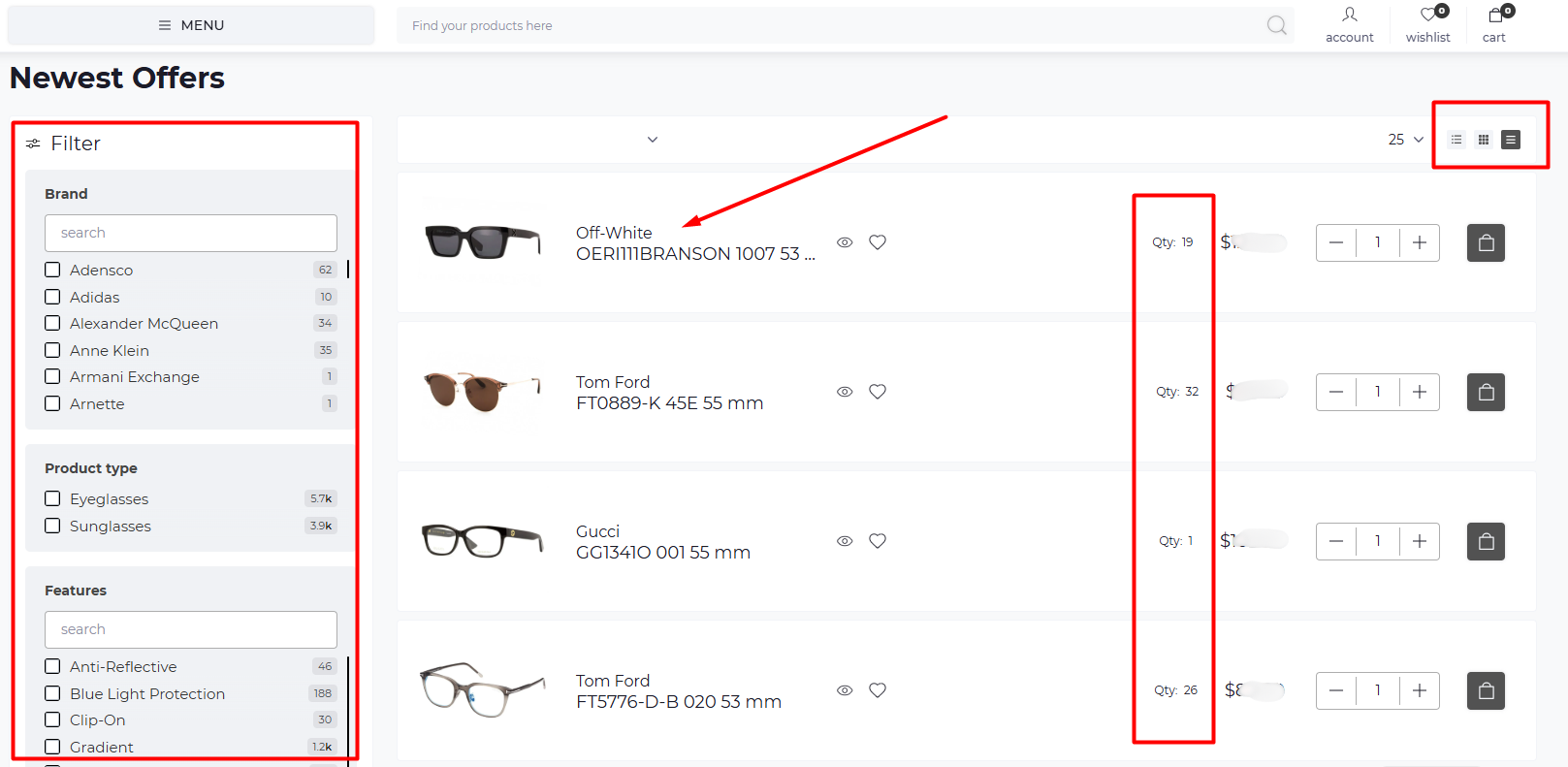
- Filter panel (left): Filter by Brand, Product Type (Eyeglasses/Sunglasses), Features (e.g., Blue Light Protection), Color, and Discounts.
- Product list (center/right): Product image, name, size, brand, and price.
- Stock quantity shown as “Qty: XX.”
- View options (top right): Choose between list view, grid view, or compact view.
- Add to Cart controls: Minus (–), Plus (+), and Cart icon.
Steps:
- Use the Filter panel to narrow down results.
Example: Tick “Adidas” under Brand to see only Adidas eyewear.
Combine filters for more precise results (e.g., Adidas + Sunglasses + Blue Light Protection). - Browse the list of products.
- Check Qty to see available stock.
- Adjust the number of pieces with the – / + buttons.
- Click the cart icon to add the item to your shopping cart.
- Change the view style (icons at top right) to switch between list/grid layouts.
6. Special Offers Page
What you see:
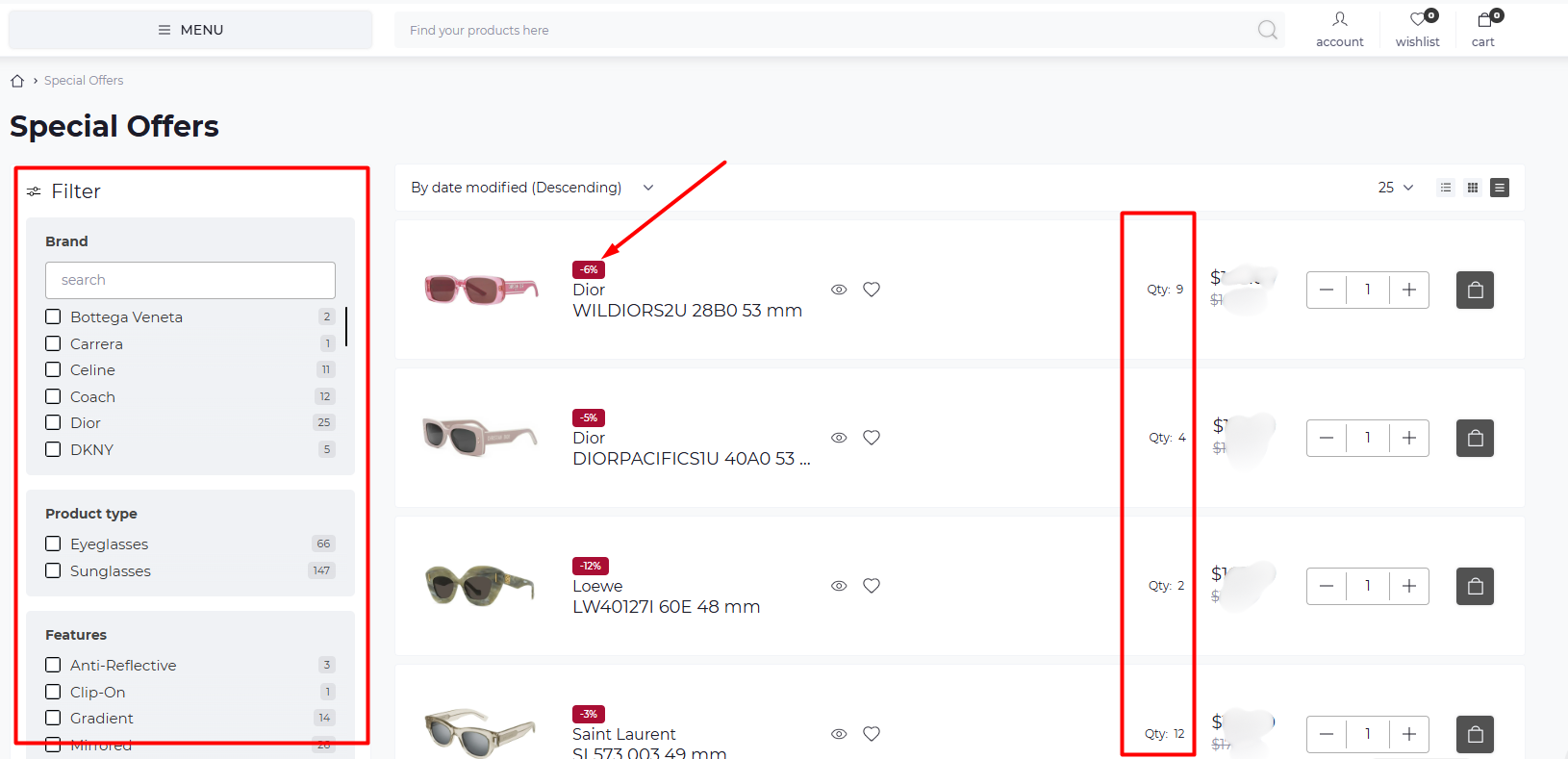
- Filter panel (left): Filter by Brand, Product Type, Features.
- Product list (center/right): Image, brand, model, size, discount label, stock quantity, and prices.
- Discount tags (e.g., –6%, –12%) show how much you save.
- Sorting dropdown at the top lets you change how items are displayed.
- Add to Cart controls: Minus (–), Plus (+), and Cart icon.
Steps:
- Open the Special Offers section from the menu.
- Use the Filter panel to narrow results by brand, type, or features.
Example: Select Dior + Sunglasses to only see discounted Dior sunglasses. - Use the Sorting dropdown (top of the product list) to reorder results:
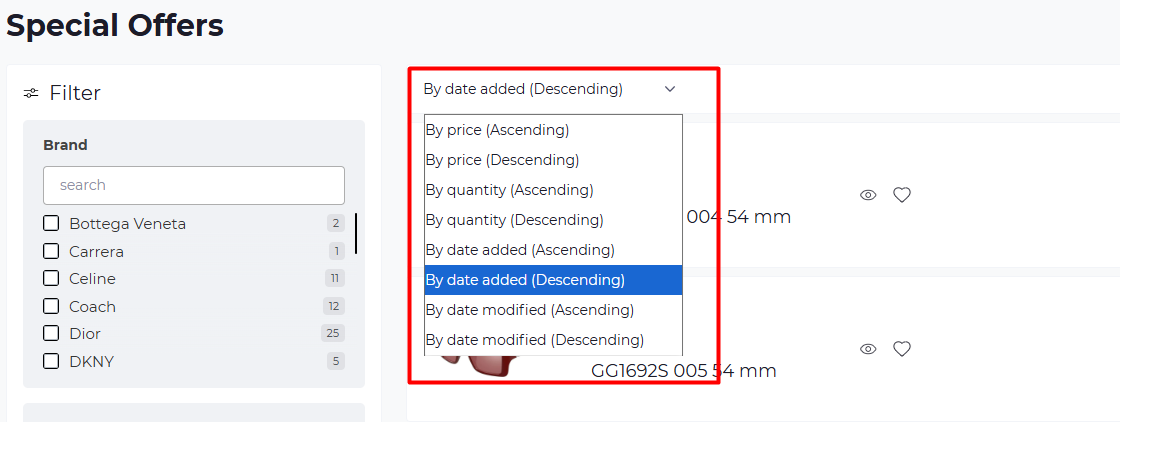
- By Price (Ascending/Descending) → cheapest or most expensive first.
- By Quantity → items with lowest or highest stock.
- By Date Added → newest or oldest arrivals.
- By Date Modified → most recently updated products.
- Look for the red discount labels to spot savings quickly.
- Compare the old price (crossed out) with the new discounted price.
- Check stock availability under Qty.
- Adjust the quantity with – / + and click the cart icon to add the product to your cart.
Tips:
- *For newest deals, sort by Date Added (Descending).
- For best bargains, sort by Price (Ascending).
- Combine filters with sorting to find exactly what you need (e.g., “Dior + Gradient + Price Ascending”).*
7. Product Details Page
What you see:
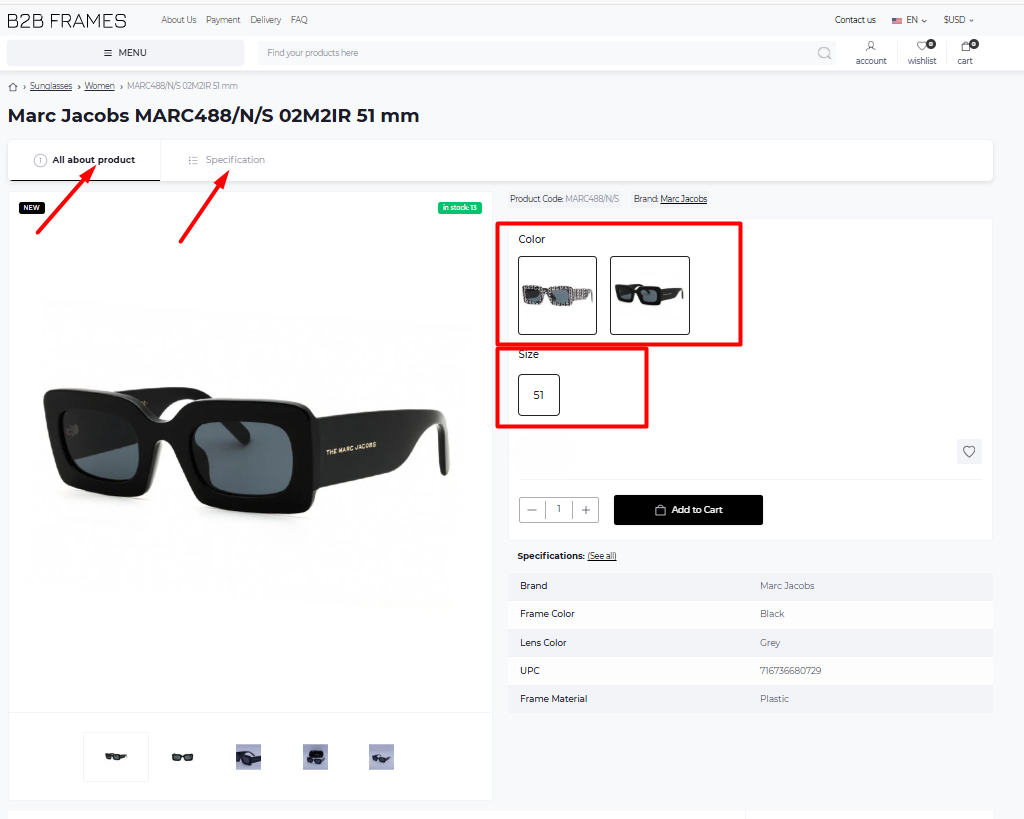
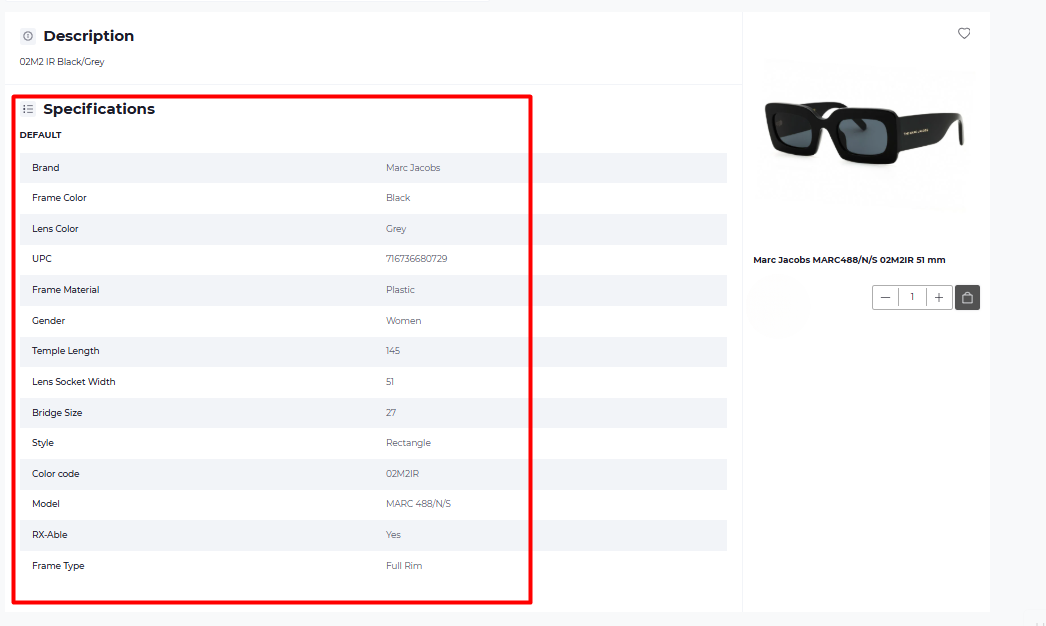
- Product name and images.
- Tabs: All About Product and Specification.
- Options: Color and Size.
- Add to Cart button.
- Full specifications table.
Steps:
- Click on a product to open its details.
- Choose Color and Size (if available).
- Check the Specification tab for details (frame material, size, style).
- Set the quantity.
- Click Add to Cart to purchase.
👉 Use heart icon (wishlist) if you want to save the item for later.
8. Using Search
What you see:
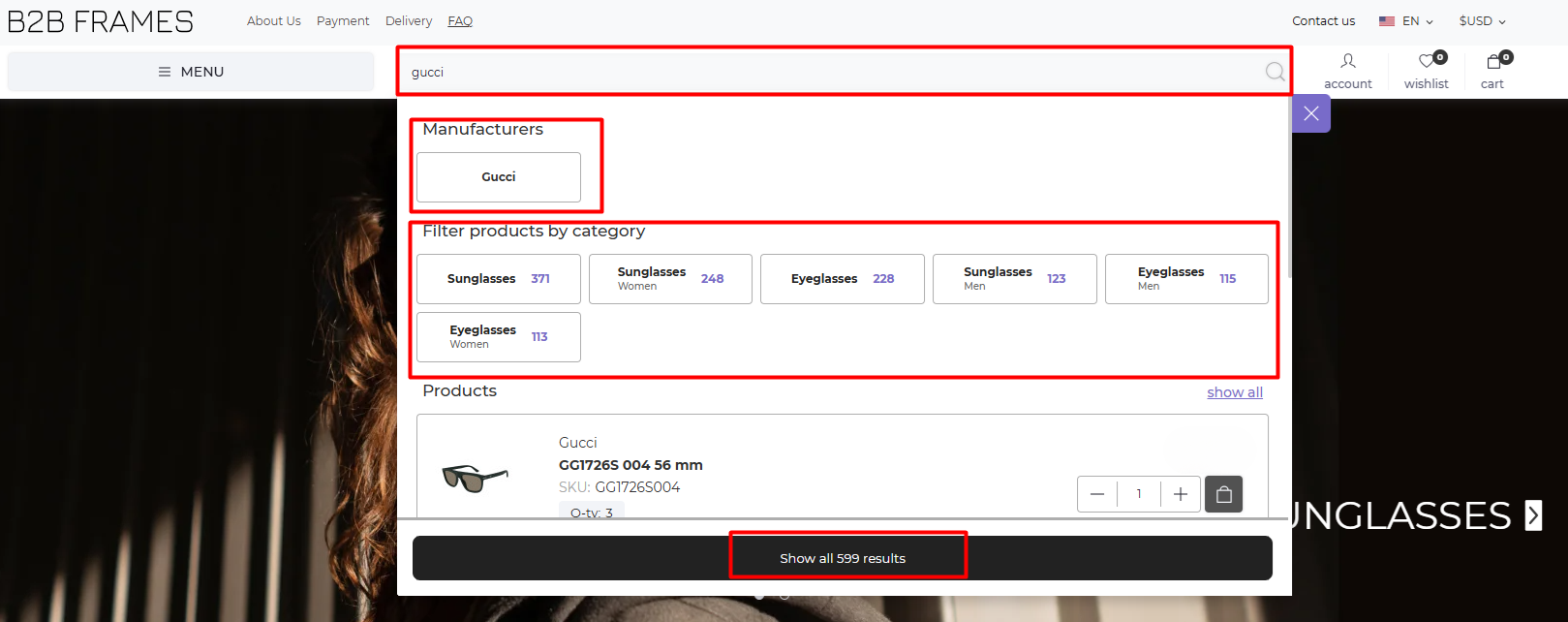
- Search bar at the top.
- Results split into: Manufacturers, Categories, and Products.
Steps:
- Type a brand or keyword (e.g., Gucci) into the search bar.
- Select a result under Manufacturers or Categories to filter.
- Or scroll down to see product matches directly.
- Click Show all results to see the full product list.