Transactions
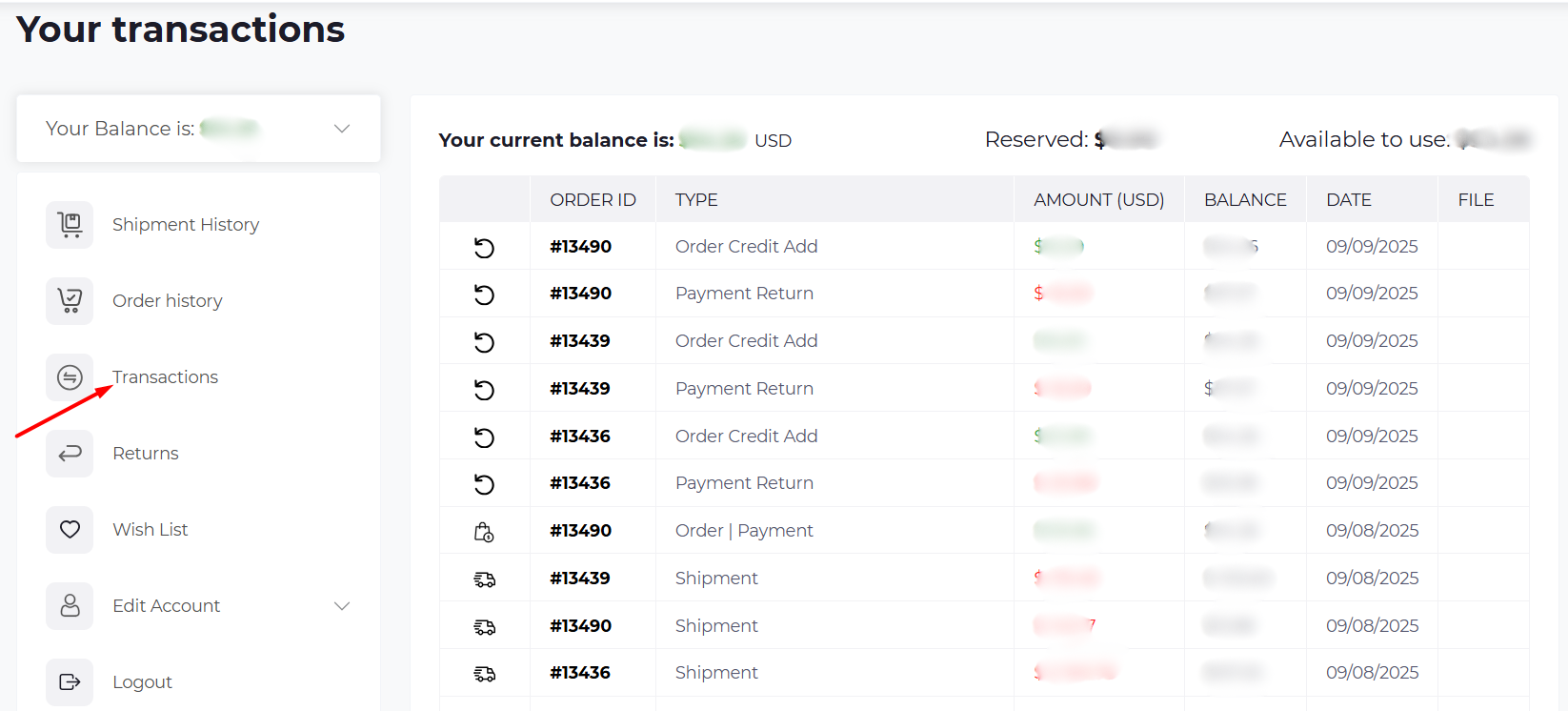
The Transactions page shows a detailed record of all financial activities connected to your account and orders. This is where you can track credits, payments, refunds, and shipment charges.
How to Access
From the left-hand menu, click Transactions.
Page Overview
At the top of the page, you’ll see:
- Your Balance – Current total balance available in your account.
- Reserved – Amount temporarily reserved for ongoing or pending orders.
- Available to use – Funds you can spend immediately.
Transaction Table
Each transaction is listed with the following details:
- Order ID – Links the transaction to a specific order.
- Type – Explains what the transaction is (e.g., Order Payment, Shipment, Order Credit Add, Payment Return).
- Amount (USD) – The value of the transaction.
- Green = credit added.
- Red = amount deducted.
- Balance – Shows your account balance after the transaction.
- Date – When the transaction took place.
- File – Option to download a related document, such as an invoice or receipt.
⚡ Tip for users: Check this page regularly if you use store credit or have frequent returns/refunds. It helps you keep track of available funds for future orders.